Overview
A Policy Set is a group of rules that StackGuardian checks every time a Workflow or Stack runs. Use Policy Sets to catch security, cost, and compliance issues in your Infrastructure as Code (IaC) before changes reach your cloud.
Instead of reviewing every run manually, you define the rules once, choose where they apply, and StackGuardian enforces them for you.
Each Policy Set brings together three things:
- Rules: The checks to run. A rule can use a ready-made template from SGMarketplace, a Tirith policy, or an Open Policy Agent (OPA) policy.
- Actions: What happens when a rule passes or fails. A rule can pass the run, show a warning, fail the run, or require approval before the run continues.
- Scope: Where the Policy Set applies. You can enforce it on specific Workflows, Workflow Groups, Stacks, Connectors, or connector groups, or on your entire organization. When a Workflow or Stack runs, StackGuardian evaluates every Policy Set in scope and applies the action defined for each rule.
Go to SGOrchestrator > Policy set to see every Policy Set in your organization. To add one, select Create policy set. For steps, see Create a Policy Set.
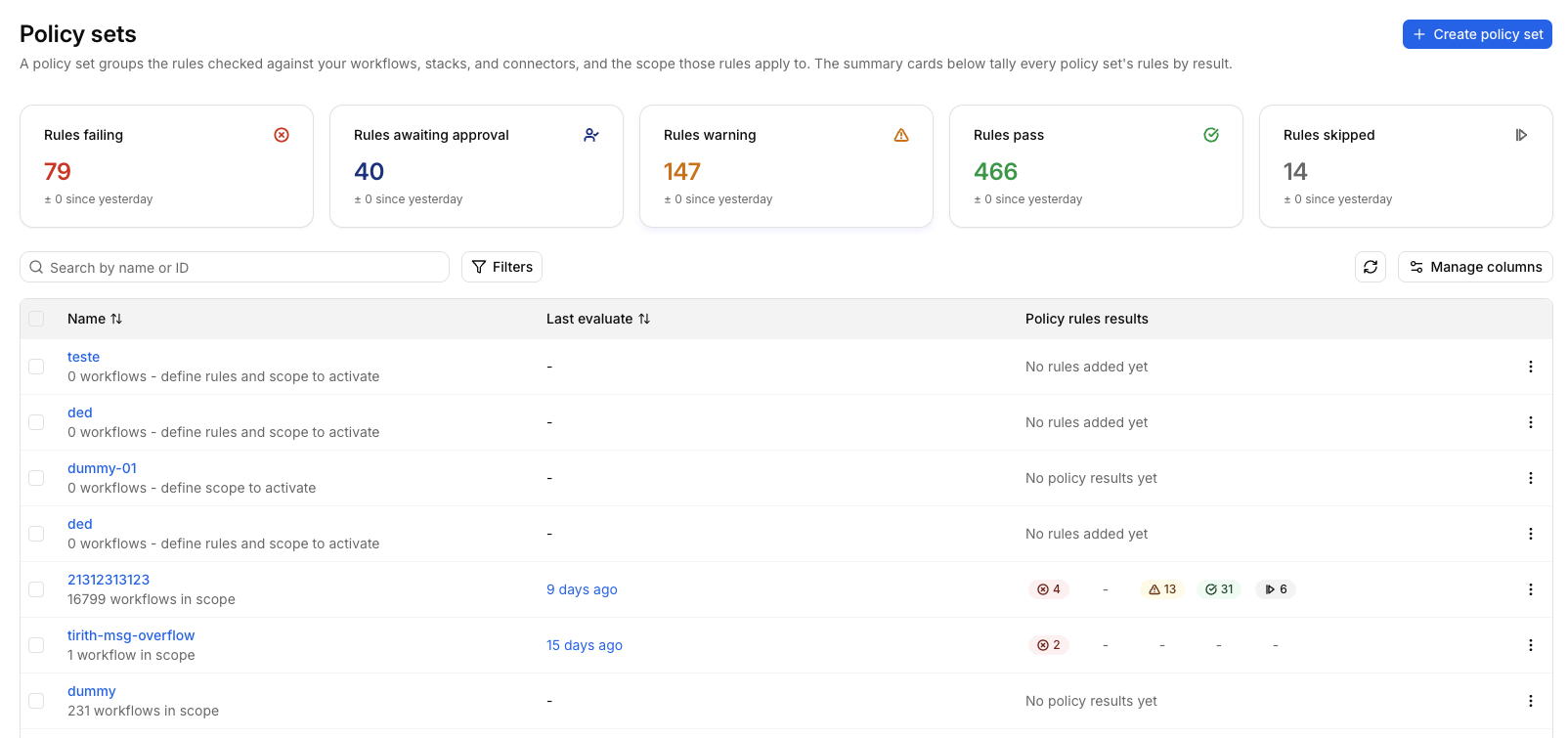
Policy sets list
Summary cards
The cards at the top tally the rules of every Policy Set in your organization by result:
- Rules failing: Rules that failed. Fail always wins the overall result, no matter what any other rule returned.
- Rules awaiting approval: Rules whose check is waiting for a person to approve it. This is an action waiting to happen, not a pass, fail, or warn outcome.
- Rules warning: Rules that returned a warning. A warning decides the overall result only when no rule failed.
- Rules pass: Rules that passed.
- Rules skipped: Rules that weren't evaluated.
Each card also shows how the number changed since yesterday.
Policy Set list
Below the cards, the list shows all Policy Sets in your organization:
- Name: The Policy Set name. Under the name, you see how many Workflows the Policy Set covers, such as "3 workflows in scope". If a Policy Set has no rules or no scope yet, a prompt shows instead, such as "0 workflows - define rules and scope to activate".
- Last evaluated: When the Policy Set was last evaluated. Shows a dash if it hasn't been evaluated yet.
- Policy rules results: The number of rules with each result. Shows "No rules added yet" or "No policy results yet" when there's nothing to count. To find a Policy Set, search by name or ID, or select Filters. Sort the list by name or by last evaluated date. Select Manage columns to change the columns shown, and the refresh icon to reload the list. Use the three-dot menu on a row to Edit, Clone, or Delete a Policy Set.
Select a Policy Set to open its details page, where you can manage its rules, scope, and metadata across four tabs: Overview, Rules, Scope, and Meta.