CLI-driven Workflow
Overview
The CLI-driven Workflow integration brings remote workflow execution into the familiar Terraform CLI workflow on StackGuardian.
You can start runs with the standard terraform plan and then watch the progress of the run from your terminal. These runs execute remotely on StackGuardian platform using configuration files from a local directory.
Currently, only terraform init and terraform plan are supported for CLI-driven Workflows. To run an apply, trigger it from the StackGuardian platform or use VCS triggers.
This CLI-driven workflow functionality requires:
- Terraform: Version 1.9.x or later
- OpenTofu: Version 1.11.x or later
Prerequisites:
-
User needs to have
Run Workflow Terraform CLIpermission: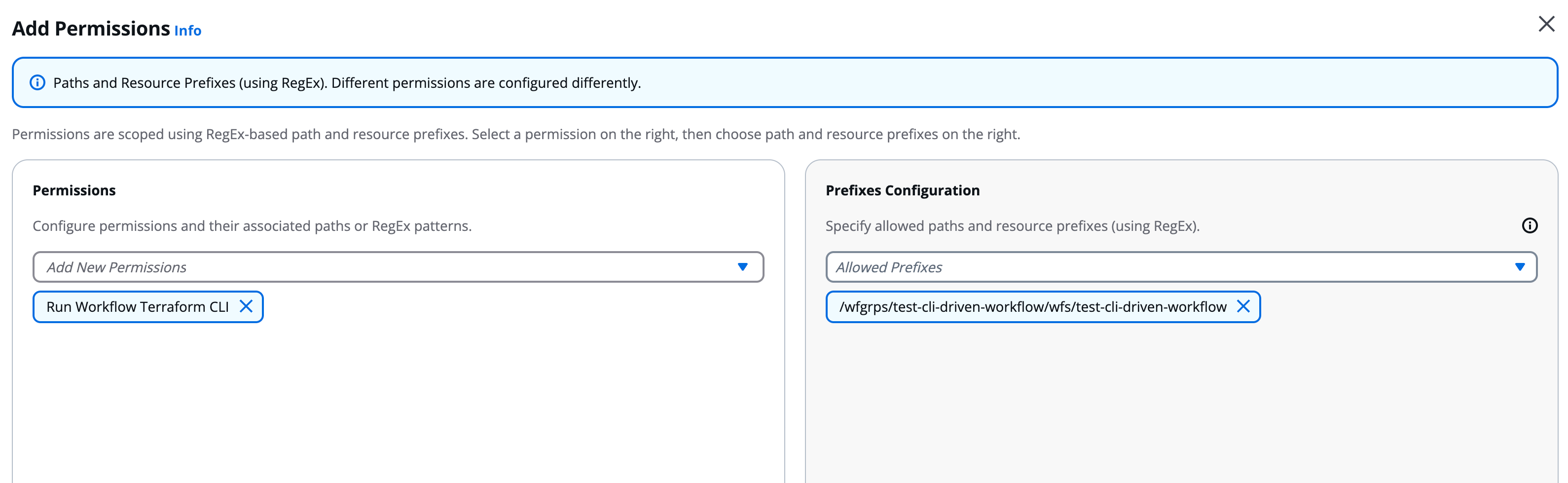
Run Workflow Terraform CLI permission configuration
-
Workflows need to have
SG Managed Terraform Backendcheck under Settings → Terraform Configuration: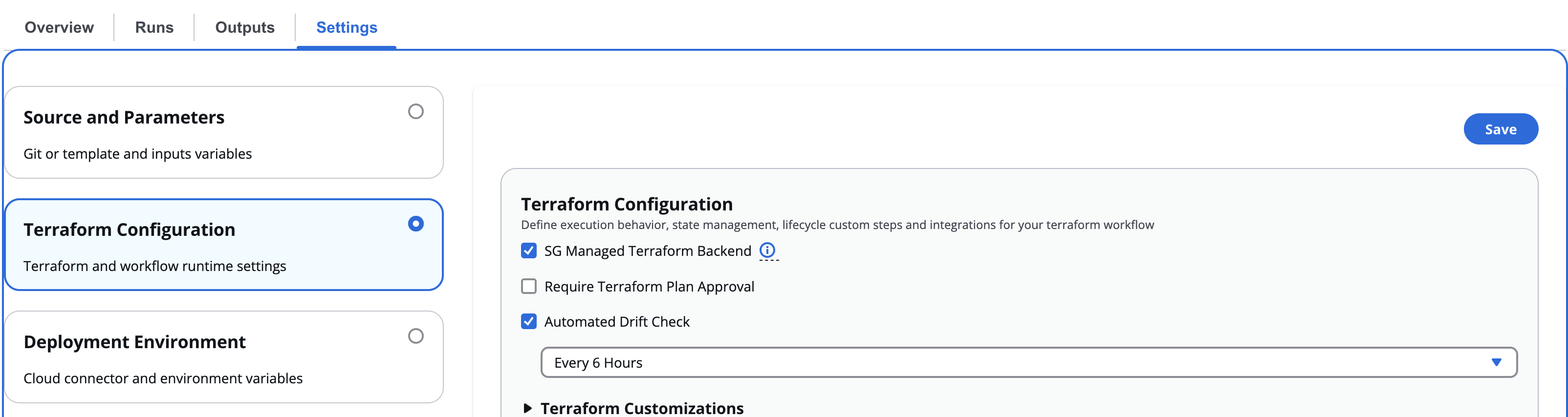
SG Managed Terraform Backend configuration
Only Terraform plans are supported using the CLI. To run the apply, the user is required to trigger it from the platform or use VCS (Version Control System) Triggers.
Configuration
Before you can use the CLI-driven workflow, complete these steps:
-
Sign in to your StackGuardian organization. If you don't have one yet, create a new organization.
-
Run
terraform loginto authenticate:- EU Region
- US Region
$ terraform login api.app.stackguardian.io$ terraform login api.us.stackguardian.ioIf you prefer, you can set up credentials manually through the CLI config file or environment variables. Check the CLI Configuration for the complete process.
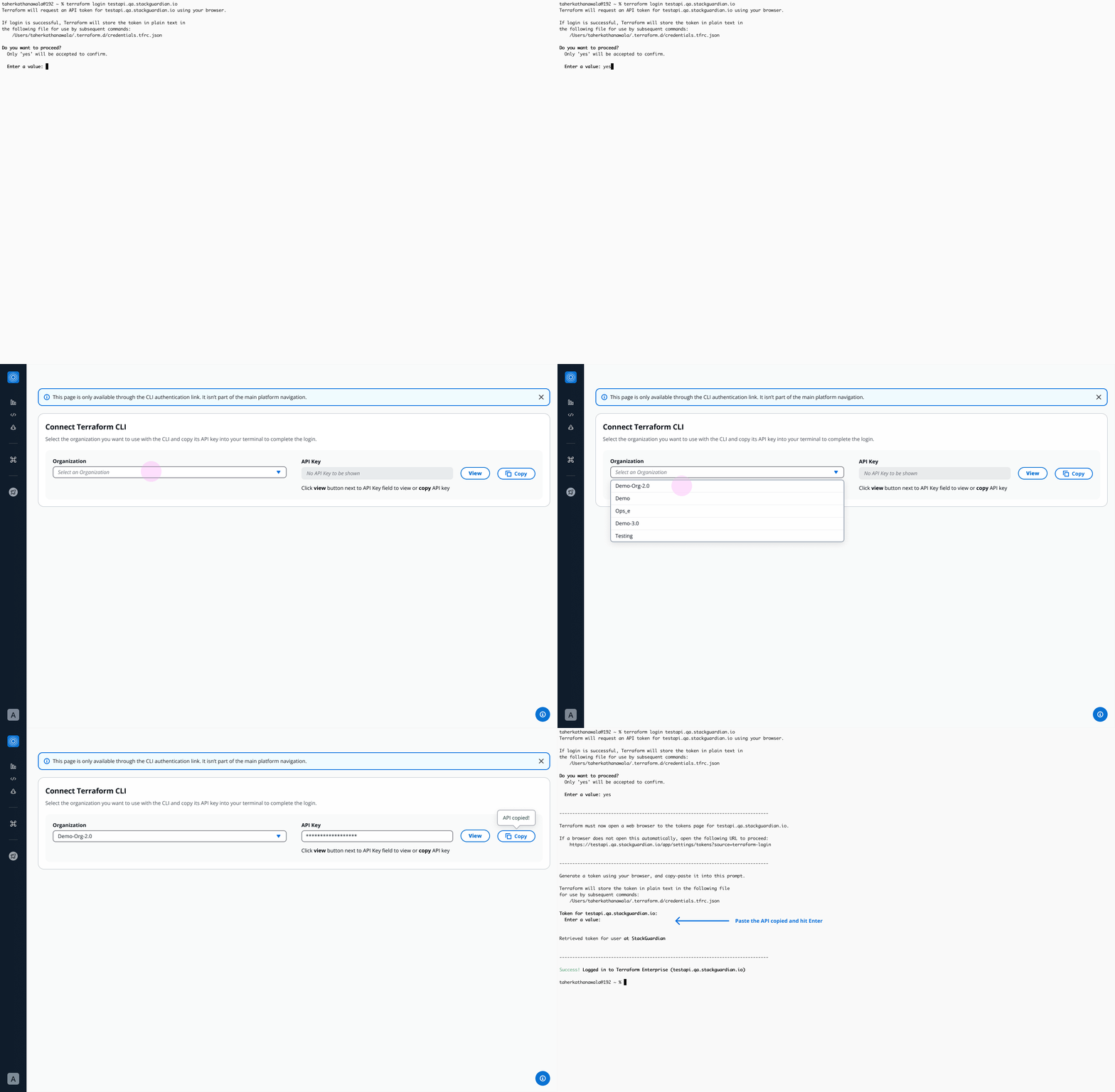
Authenticating Terraform CLI with StackGuardian
-
Add the
cloudblock to your Terraform configuration. See the Workspace Name section below for instructions on constructing your workspace name.- EU Region
- US Region
terraform {
  cloud {
    hostname     = "api.app.stackguardian.io"
    organization = "<OrgId>"

    workspaces {
      name = "wfgrps:<parent-workflowgroup>:<nested-workflowgroup>:wfs:<workflow>"
    }
  }
}
terraform {
cloud {
hostname = "api.us.stackguardian.io"
organization = "<OrgId>"
workspaces {
name = "wfgrps:<parent-workflowgroup>:<nested-workflowgroup>:wfs:<workflow>"
}
}
}noteTerraform v1.1 or later is required to use the
cloudblock. -
Run
terraform init:$ terraform init
Initializing HCP Terraform...
Initializing provider plugins...
- Reusing previous version of hashicorp/random from the dependency lock file
- Using previously-installed hashicorp/random v3.0.1
HCP Terraform has been successfully initialized!
You may now begin working with HCP Terraform. Try running "terraform plan"
to see any changes that are required for your infrastructure.
If you ever set or change modules or Terraform Settings,
run "terraform init" again to reinitialize your working directory.
Workspace Name
Default
- Get Workflow Group ID and the Workflow ID from the StackGuardian platform.
- Add
wfgrps:prefix to your Workflow Group ID. - Add
wfs:prefix to your Workflow ID. - Join both to form one single string with workflow group followed by the workflow. For example:
Workflow Group ID: `terraform-wfgrp`
Workflow ID: `terraform-wf`
Workspace Name: `wfgrps:terraform-wfgrp:wfs:terraform-wf`
Nested workflow groups
Consider you have a workflow in a nested Workflow Group. In this case you would add the child workflow group ID after the parent separated by a :. Similarly, you can add Workflow Groups according to how deeply it is nested. For example:
Parent Workflow Group ID: `terraform-parent-wfgrp`
Workflow Group ID: `terraform-child-wfgrp`
Workflow ID: `terraform-wf`
Workspace Name: `wfgrps:terraform-parent-wfgrp:terraform-child-wfgrp:wfs:terraform-wf`
Remote plans
You can run plans in any StackGuardian Terraform Workflows where you have the Run Workflow Terraform CLI permission. Plans use the configuration code from the local working directory and the variable values from the specified workflow.
To run a plan on your configuration, use the terraform plan command. The plan will run in StackGuardian, and the logs will stream back to the command line:
Running plan in StackGuardian. Output will stream here. Pressing Ctrl-C
will stop streaming the logs, but will not stop the plan running remotely.

Preparing the remote plan...

To view this run in a browser, visit:
https://api.app.stackguardian.io/app/acme-corp/production-infra/runs/orgs:acme-corp:wfgrps:production-infra:networking:wfs:deploy-vpc:wfruns:a1b2c3d4e5f6

Waiting for the plan to start...

Running on private runner group
Runner Group: production-runners

Organization: "/orgs/acme-corp"
Workflow Run: "/wfgrps/production-infra/networking/wfs/deploy-vpc/wfruns/a1b2c3d4e5f6"
Using Deployment Platform Cloud: AWS
Using Cloud Connector: aws-connector

[...]

Plan: 1 to add, 0 to change, 0 to destroy.

Changes to Outputs:
  + message_lengths = [
      + 13,
    ]
Terraform CLI state commands
This feature is in Preview. Functionality may change before general availability.
The state file is a record of the infrastructure Terraform has provisioned. Using Terraform CLI state commands, you can inspect and manipulate the state file directly from your terminal. StackGuardian executes these commands against the managed backend configured for your Workflow.
Terraform state commands directly modify the state file, not your infrastructure. Incorrect changes can cause Terraform to misrepresent what is deployed in your cloud account, leading to failed runs or unintended changes on the next apply. Only platform engineers with a clear understanding of the state file structure should use these commands.
Supported commands
| Command | Description |
|---|---|
terraform state show | Shows the attributes of a single resource |
terraform state list | Lists all resources tracked in the state file |
terraform state mv | Moves a resource from one Terraform resource name to another |
terraform state rm | Removes a resource from Terraform management |
terraform state pull | Displays the outputs and resources in the state file |
terraform state identities -json | Lists the identities of resources in the state |
terraform state replace-provider | Replaces the provider for a resource in the state |
terraform import | Imports a resource into the Terraform state |
terraform taint | Marks a resource for replacement on the next run |
terraform untaint | Removes the replacement mark from a resource |
Workspace locking
Some state operations require an exclusive lock on the Workflow. When the Terraform CLI acquires a lock, StackGuardian queues any pending runs and prevents them from executing until the lock is released. New runs can still be created and queued during this time.
The lock is released automatically when the operation completes.
Required permissions
All Terraform CLI operations, including running a plan, require the following base permissions:
- Get Workflow Artifact — required to access the state file (
tfstate.json) - Get Workflow — required to access the Workflow
Some commands require additional permissions:
| Command | Additional permissions required |
|---|---|
terraform state mv, terraform state rm, terraform taint, terraform untaint, terraform import, terraform state replace-provider | Update Workflow, Create Update Delete Workflow Artifact |
terraform state show, terraform state list, terraform state pull, terraform state identities | None |
Contact your StackGuardian administrator if you receive a permission error when running state commands.