Workflows & Stacks Templates
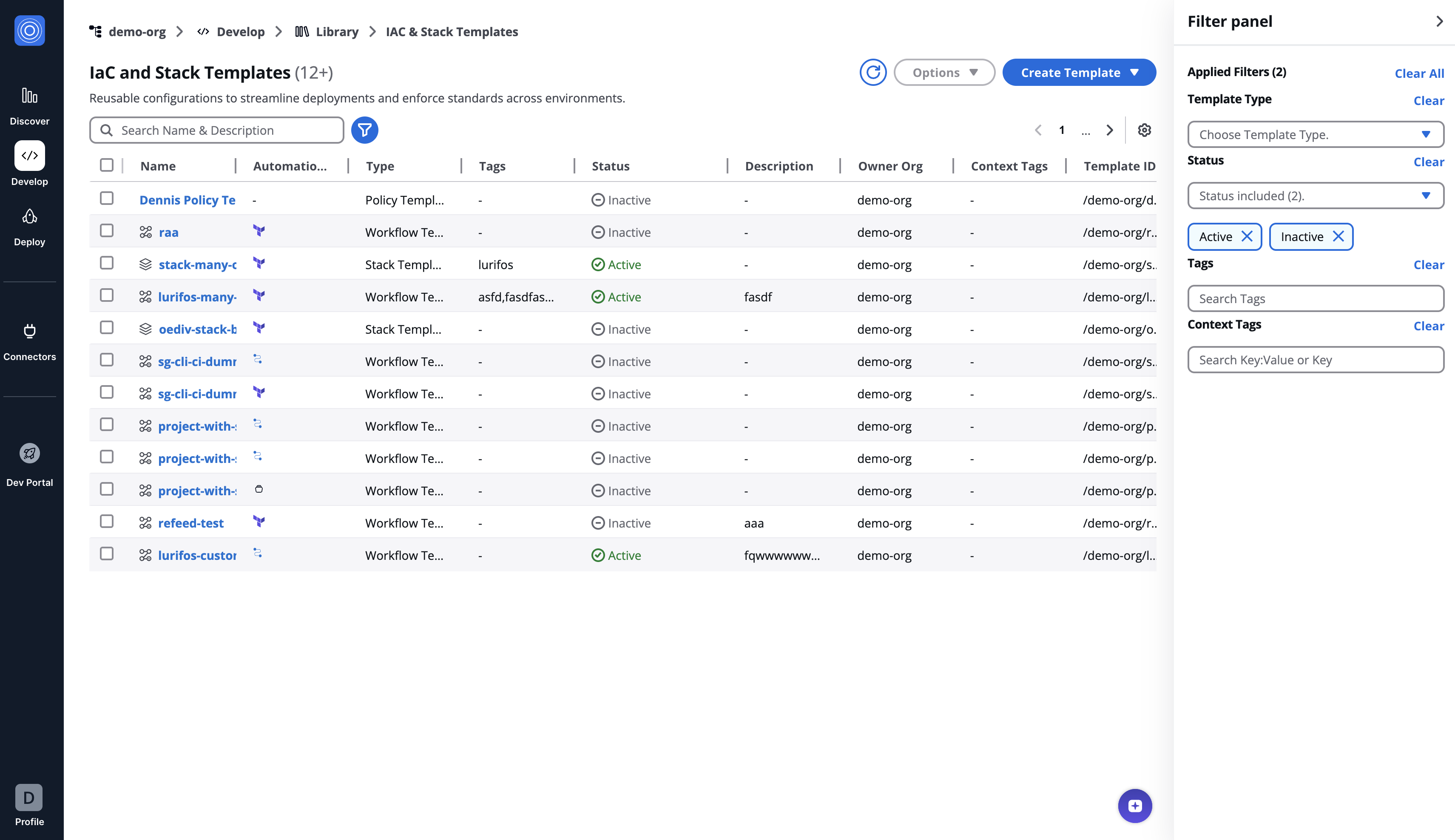
Workflows & Stacks Templates
Workflow Templates
Workflow Templates are automated blueprints for provisioning cloud infrastructure. They support rapid deployment with features like version control, JSON-based configurations, and customizable settings for infrastructure components.
Create a Workflow Template
To create a workflow template:
- Navigate to organization's library and select Create Template in the top-right corner.
- Select the Template type.
- Select the Git Repository:
- Version Control: Choose the repository service, e.g., GitHub.
- Repository: Enter the URL where the IAC configuration is hosted.
- Working Dir: Directory path for the IAC configuration if not at the repo's root.
- Git Sparse Checkout Config: Git Sparse Checkout Config: Specify paths to include or exclude for the repository checkout, akin to .gitignore. By default we checkout the full repository.
- Enable git core.autocrlf: Tick if you need to normalize line endings.
- Fill the Template configuration:
- Template Name: Unique identifier, e.g.,
aws-ec2-demo.- Template ID: Auto-generated from the Template Name. You can customize it using only letters, numbers, underscores (_), or dashes (-). Resource names containing whitespace may generate unexpectedly different IDs. This cannot be changed after creation.
- Description: Brief description, e.g., "EC2 instance setup template for production environment".
- Template Tags: Add tags to categorize the Template.
- Click Create.
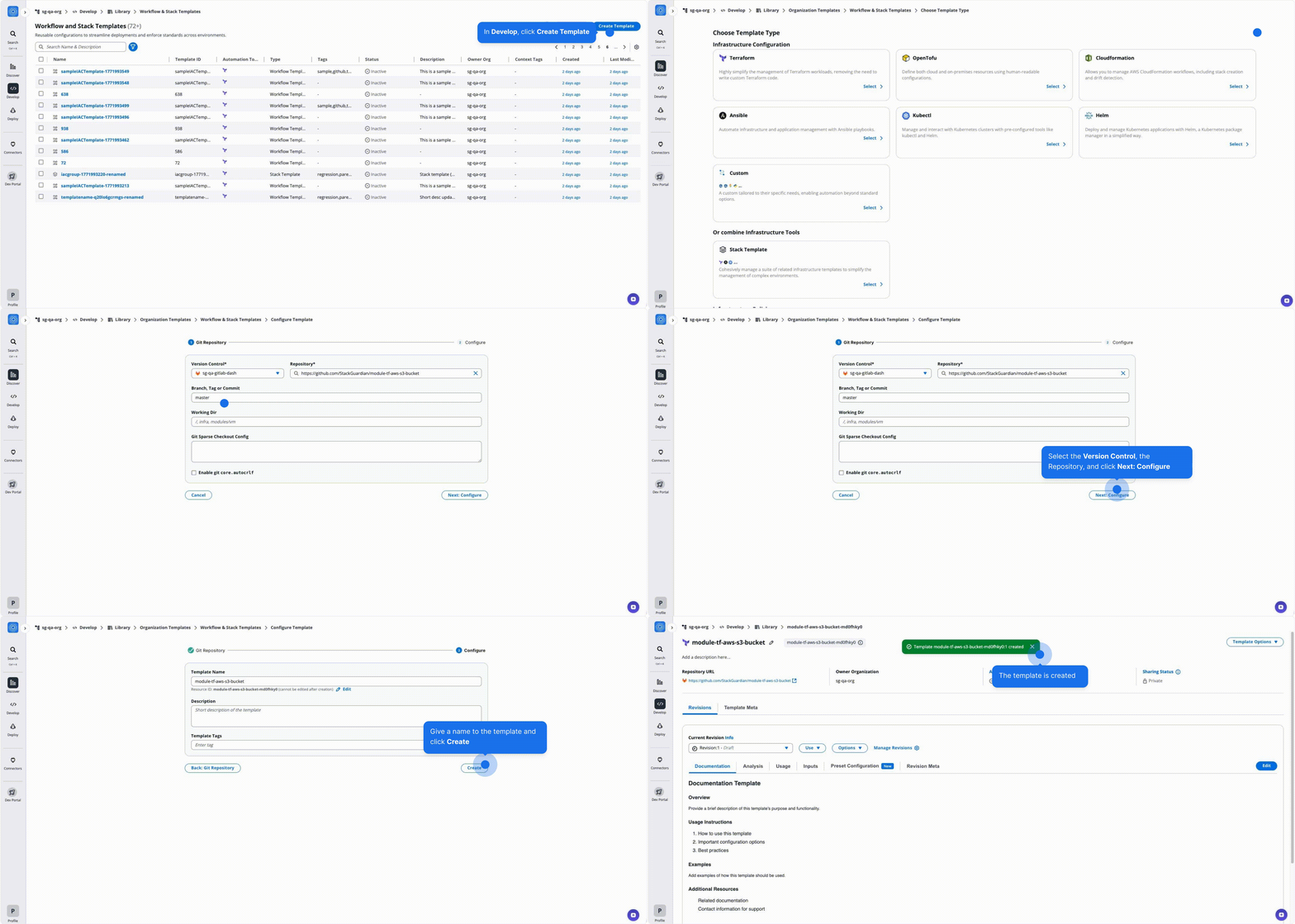
Create Workflow Template
Template Inputs
Select between FORM and JSON for input methods. Here's a JSON example for creating a simple EC2 instance:
{
  "create": true,
  "name": "production-instance",
  "instance_type": "t2.micro",
  "ami": "ami-0110d1b5b1cdd8780",
  "key_name": "production-key",
  "vpc_security_group_ids": ["sg-12345678"],
  "subnet_id": "subnet-12345678"
}
Create and Manage Template Revisions
All template types in StackGuardian support versioned revisions for controlled deployment and collaboration. You can select, clone, publish, deprecate versions and more. Visit the Manage Template Revision guide.
Stack Templates
Stack Templates are sets of interrelated workflow templates that orchestrate the provisioning of infrastructure components. They simplify the management of complex environments by combining templates into a unified workflow.
For instance, a Stack might include templates for setting up databases, servers, and load balancers that are deployed together to form a scalable web application environment.
Create a Stack Template
To create a Stack Template:
- Navigate to organization's library and select Create Template in the top-right corner.
- Click Add Template to incorporate your chosen templates.
- Select the latest revision to ensure the Stack uses the most current configurations.
- Correctly sequence your templates by dragging them into the desired order, paying attention to dependency requirements.
- Click Next: Configure.
- Fill in the Stack Template details:
- Template Name: Assign a descriptive name, such as 'web-store-app'.
- Template ID: Auto-generated from the Template Name. You can customize it using only letters, numbers, underscores (_), or dashes (-). Resource names containing whitespace may generate unexpectedly different IDs. This cannot be changed after creation.
- Description: Describe the group's purpose, e.g. Templates for a complete web store infrastructure.
- Template Tags: Add tags to categorize the Template.
- Click Create to finalize your Stack Template.
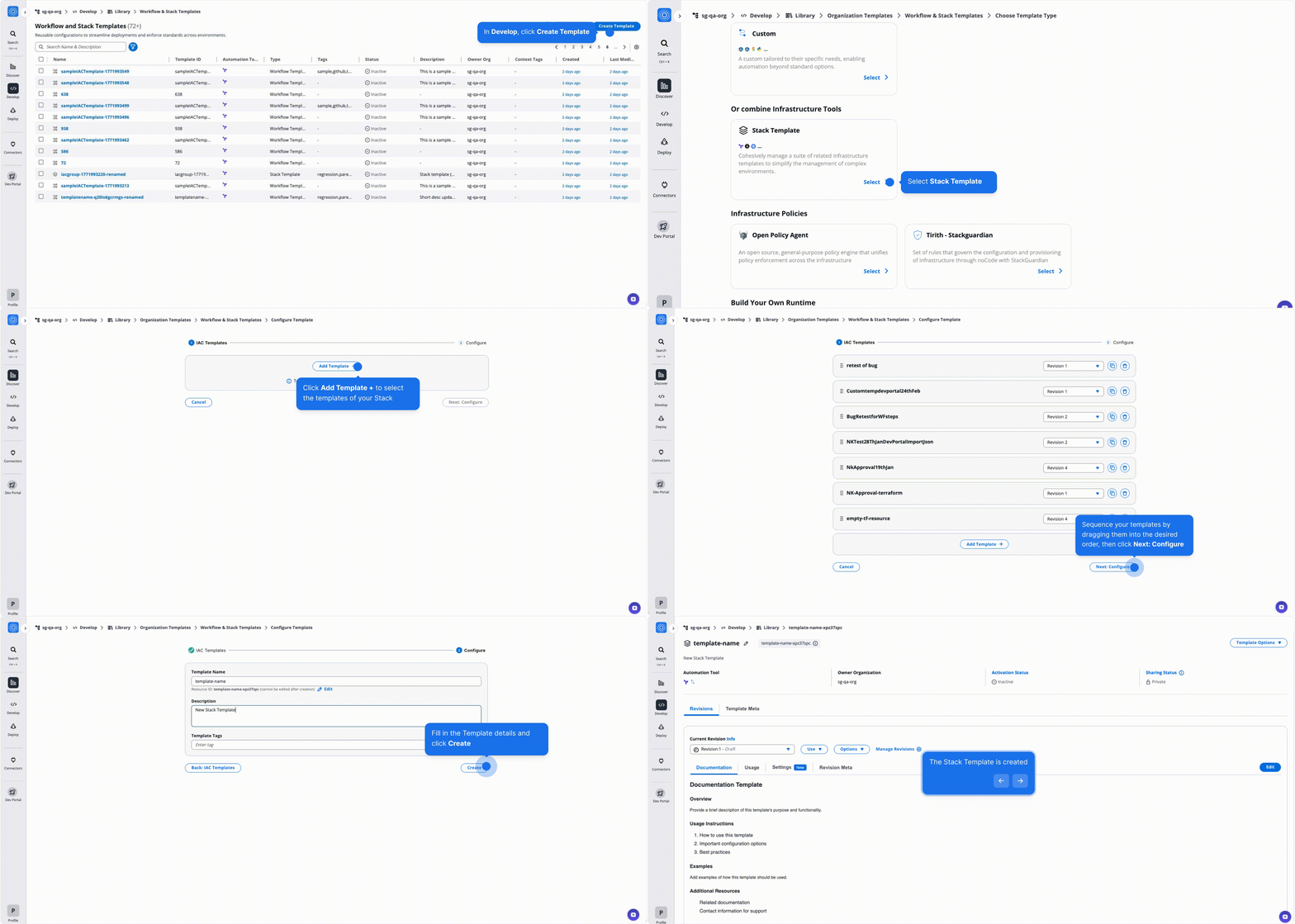
Create Stack Template
Create and Manage Template Revisions
All template types in StackGuardian support versioned revisions for controlled deployment and collaboration. You can select, clone, publish, deprecate versions and more. Visit the Manage Template Revision guide.