Global Section
These sections appear at the top of the stack page and remain consistent across all tabs.

1. Stack Header
Displays identifying information about the stack.
-
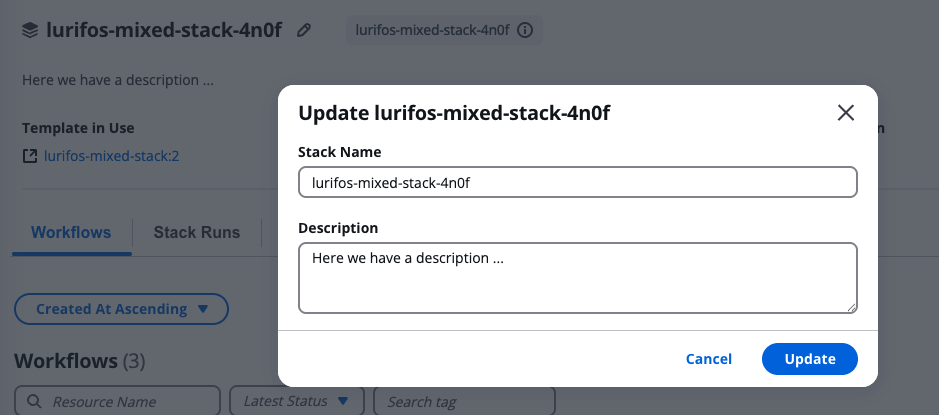
Stack Display Name & ID:
- The display name can be edited inline.
- The ID is system-generated and cannot be changed.
-
Stack Description:
- Editable text field used to describe the purpose, use case, or context of the stack and can be edited with the display name.
2. Stack Options
Located at the top-right corner of the Stack page, this menu provides key operational actions for managing and executing a Stack.

-
Run Stack – Manually execute the Stack with the current configuration.
Selecting Run Stack opens a modal that allows you to configure and initiate an execution.
Field Description Action Choose the desired action to perform, such as Create,Update, orDestroy.Add Context Tags to This Run Attach context tags to the specific Stack run for tracking and filtering. Run with Different Parameters Opens an advanced configuration panel to customize variables before running. Run Executes the Stack immediately using the selected action and parameters. This option is ideal for triggering Stack executions directly through the UI.
-
Use Programmatically – View API, CLI, or SDK commands to automate Stack executions externally.
This section provides ready-to-use code snippets (e.g., cURL, JavaScript, Python, or SG CLI) to integrate Stack runs into CI/CD pipelines or other automation tools.
-
Modify & Run – Launches the Stack modification process, guiding you through configuration steps before execution.
You can update Stack and Workflow settings, input variables, connector environments, and runtime parameters before running the updated version.
-
Use Wizard – Opens an intuitive guided interface for editing key Stack configurations.
This includes:
- Basic Stack metadata (name, description, tags).
- The ability to reorder workflows within the Stack's execution sequence.
- Adjusting context or template parameters with more granular control.
The wizard provides a structured way to fine-tune Stack details before deployment.
-
Delete – Permanently removes the Stack.
Deletion is protected by a safety confirmation.
Warning Description ⚠️ Destroy First To delete a Stack, it must first be destroyed — removing all associated resources. Deleting Without Destroying Optionally, you may delete without destruction, leaving underlying resources active. However, all associated workflows will be permanently deleted "but not destroyed" 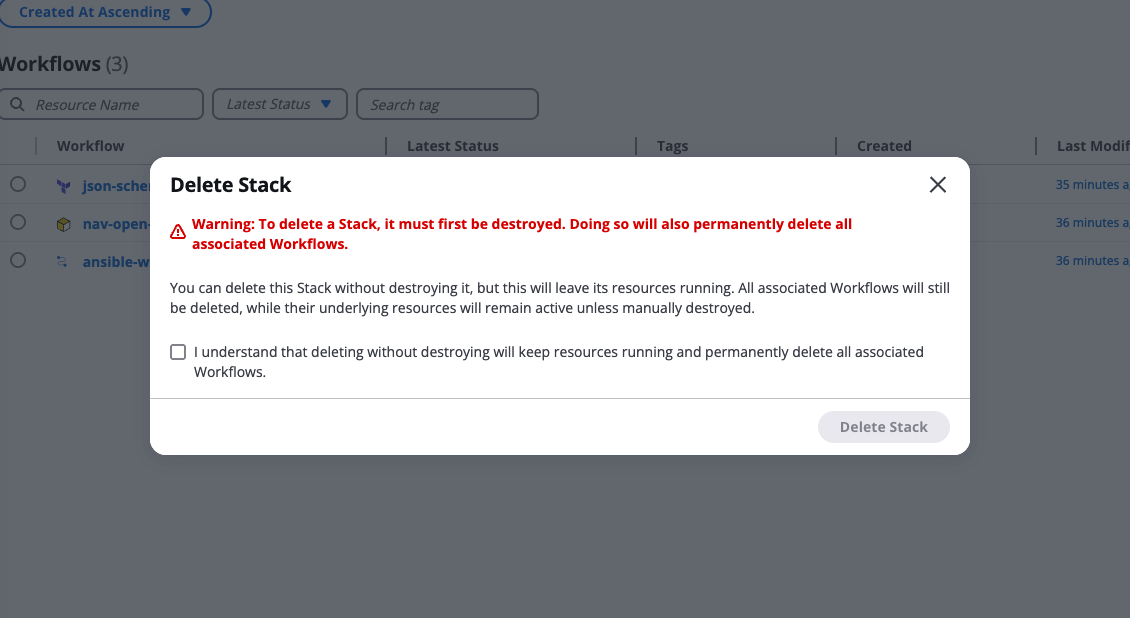
This ensures you do not unintentionally leave orphaned resources or lose active workflow configurations.
3. Stack Information Widgets
Located directly below the header, the Stack summary provides at-a-glance insights:

| Widget | Description |
|---|---|
| Template in Use | Displays the IaC template currently applied to the Stack. |
| Automation Tools | Shows the automation tools or frameworks (e.g., Terraform, Ansible) included in the Stack. |
| Stack Revision | Indicates the current revision or version number of the Stack configuration. |
| Latest Status | Displays the outcome of the most recent Stack run (e.g., Running, Completed, Failed). |
These widgets give users an instant overview of the Stack's structure, tools, and operational health.