Azure DevOps
Overview
StackGuardian offers three secure methods for connecting to Azure DevOps, each tailored for different security and operational needs:
- Client Secret - Employs a secret key with an Azure AD application for authentication.
- Workload Identity - Leverages Azure’s identity federation for enhanced security without managing secrets.
- Personal Access Token - Uses a token tied to a user account for authentication.
Choose the method that best fits your organization’s security requirements and operational preferences.
Prerequisites
For Client Secret and Workload Identity methods, you must:
- Create and configure an Azure AD application with appropriate permissions
- Add the Service Principal as a user in your Azure DevOps organization
- Grant it Basic access level (required for API access)
- Assign it to projects with at least Reader permissions
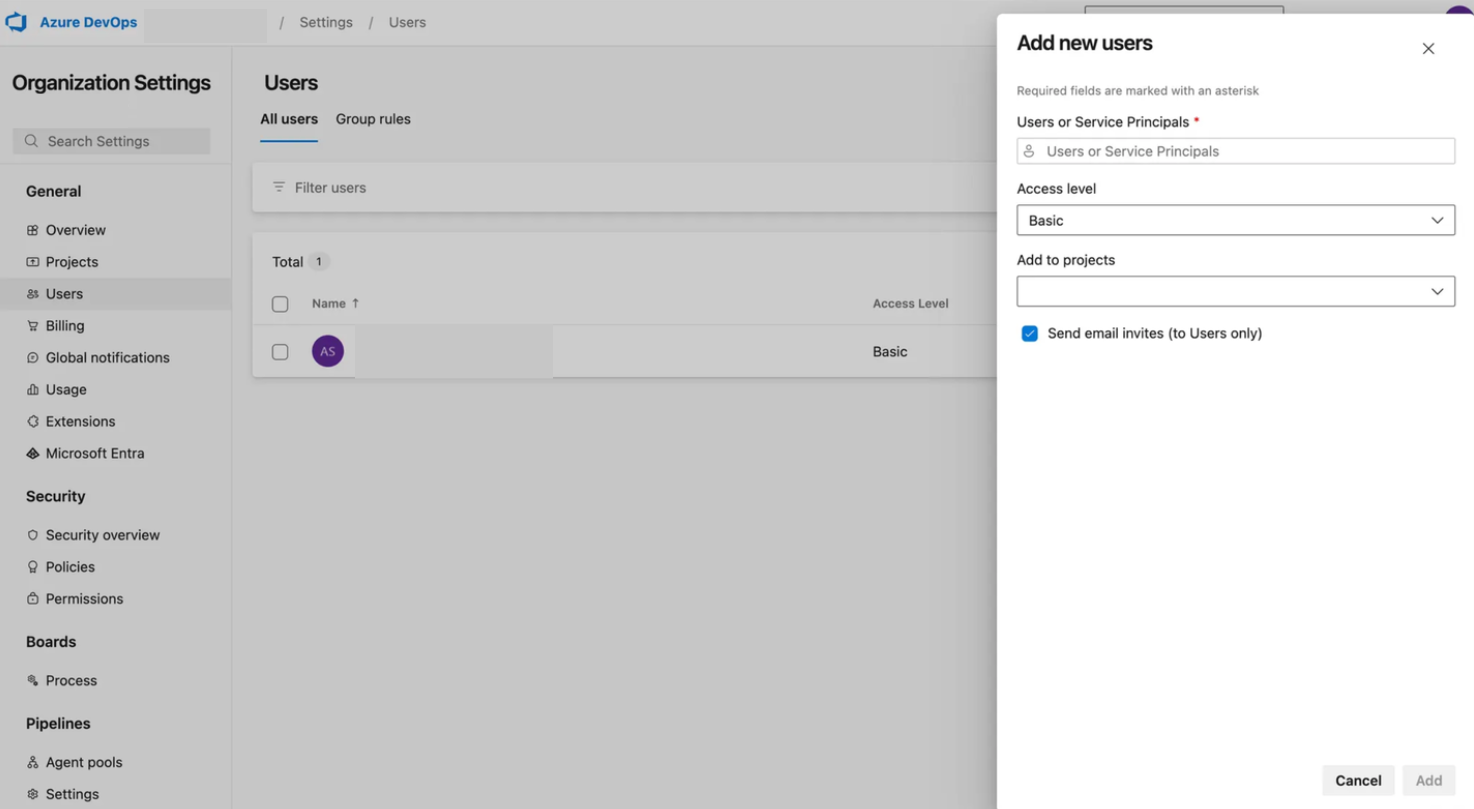
Service Principal configuration in Azure DevOps
Once configured, you can use the application credentials in StackGuardian.
Client Secret (Service Principal)
To connect Azure DevOps using a Client Secret, you need an Azure AD application registered with:
- Tenant ID (Directory ID)
- Client ID (Application ID)
- Client Secret from Azure AD
- Permissions to access Azure DevOps
Configure Connector in StackGuardian
- Go to the Connectors tab in the StackGuardian Orchestrator.
- Click on Version Control Providers > Connect with VCS Provider.
- Click on Connect to Azure DevOps.
- Enter a Connector Name.
- Select Client Secret as the Access Type.
- Enter the following information:
- Tenant ID (Directory ID)
- Subscription ID
- Client ID (Application ID)
- Client Secret Value
- Click Create to finalize the configuration of the Connector.
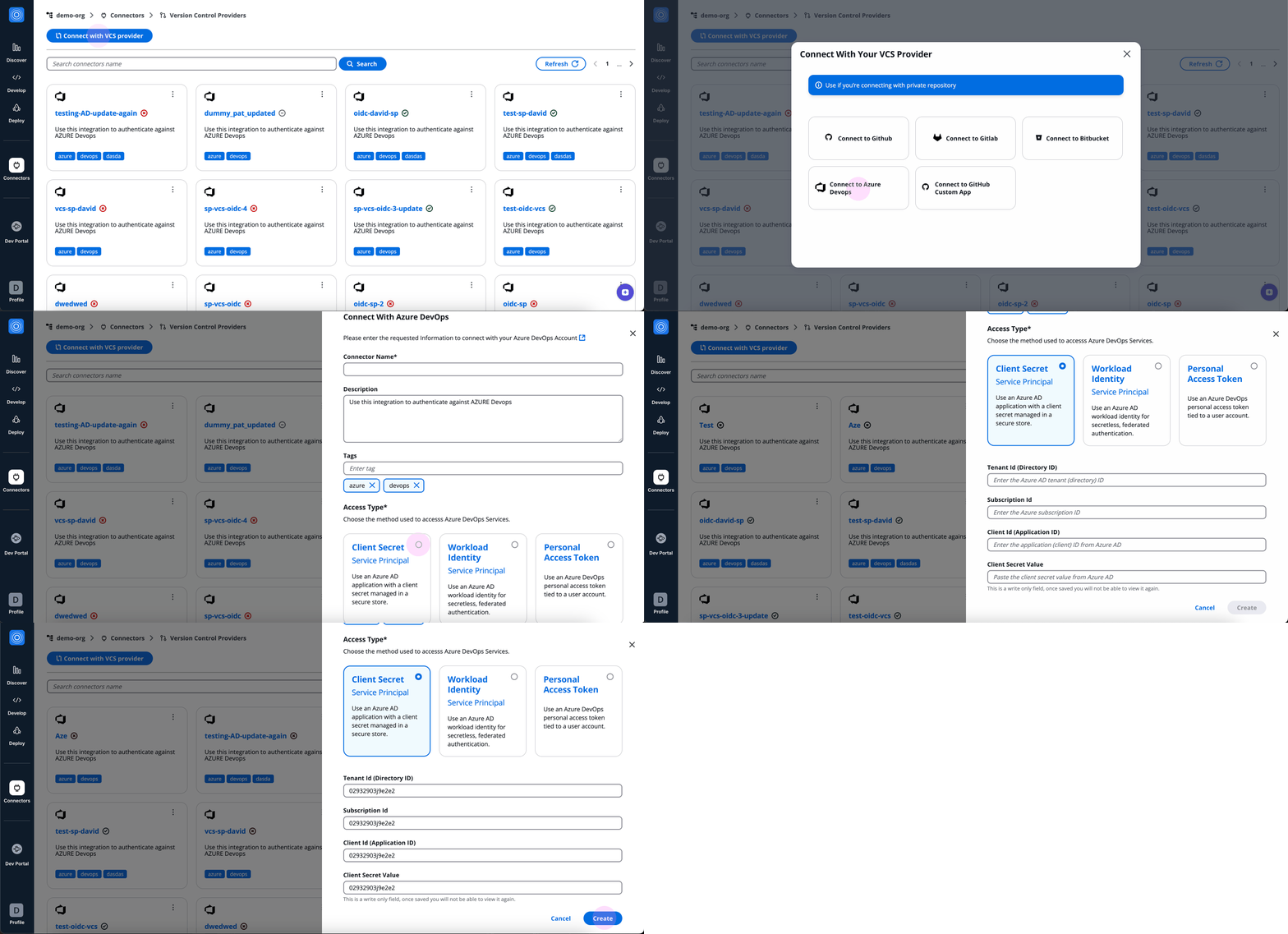
Client Secret connector creation
Workload Identity (Service Principal)
Using Workload Identity via OpenID Connect (OIDC) avoids managing client secrets. It allows StackGuardian to authenticate with Azure DevOps using a trusted identity provider.
For this, you must have an Azure AD application registered with:
- Tenant ID (Directory ID)
- Client ID (Application ID)
- Federated credentials configured for StackGuardian
- Permissions to access Azure DevOps
Configure Connector in StackGuardian
- Go to the Connectors tab in the StackGuardian Orchestrator.
- Click on Version Control Providers > Connect with VCS Provider.
- Click on Connect to Azure DevOps.
- Enter a Connector Name.
- Select Workload Identity as the Access Type.
- Enter the following information:
- Tenant ID (Directory ID)
- Subscription ID
- Client ID (Application ID)
- Click Create to finalize the configuration of the Connector.
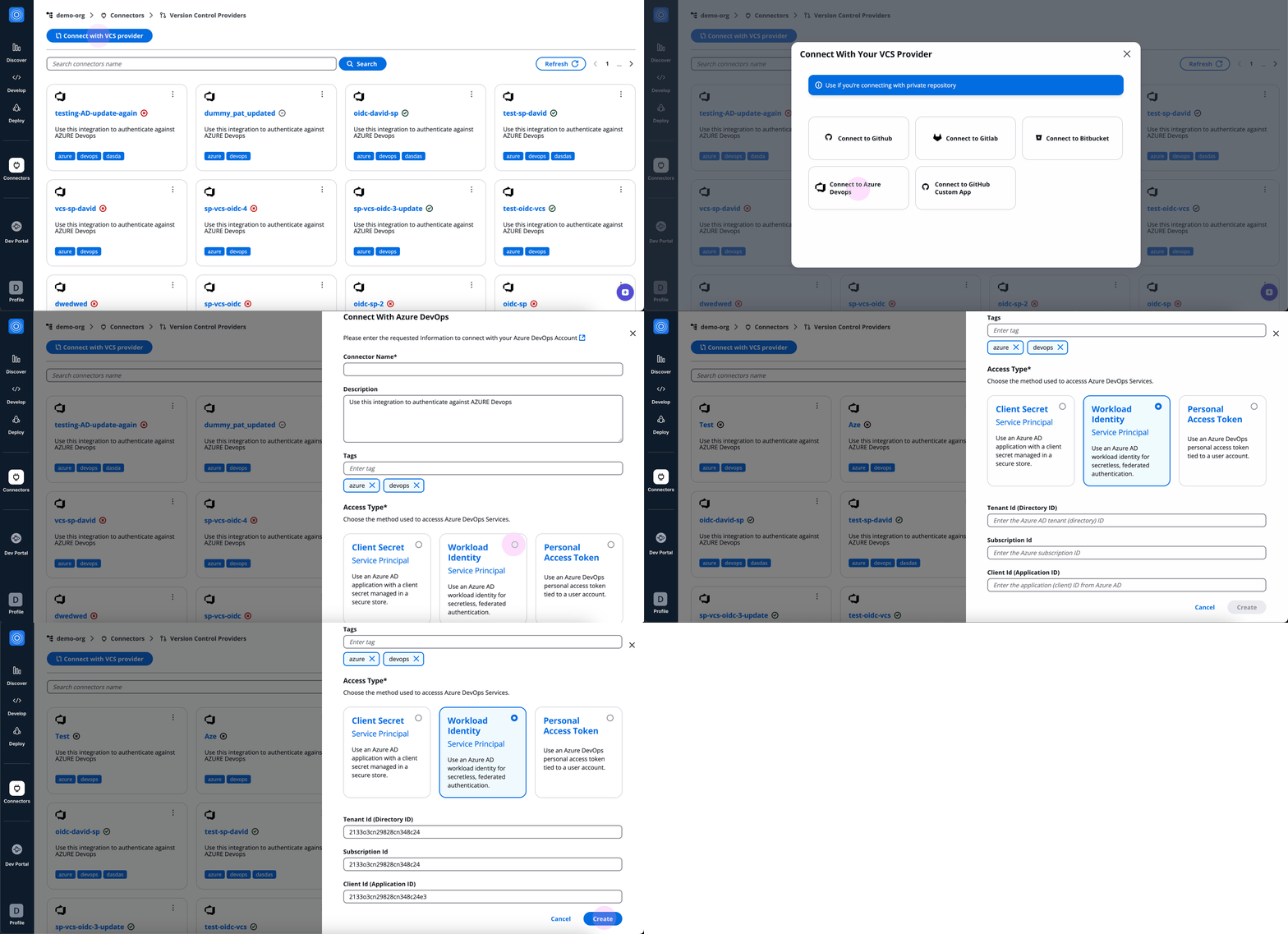
Workload Identity connector creation
Personal Access Token
To connect Azure DevOps using a Personal Access Token, you need to create a token in Azure DevOps with limited permissions:
- On the Azure DevOps platform, go to the target repository for the Access Token.
- Select User Settings on the top navbar, beside your profile name.
- Under the dropdown select Personal Access Tokens.
- Click on New Token.
- Provide a name for the token that relates to the app or task using it.
- Select the required Scopes for the token.
- Click Create to generate the token.
- Copy the generated token and securely store it for later use.
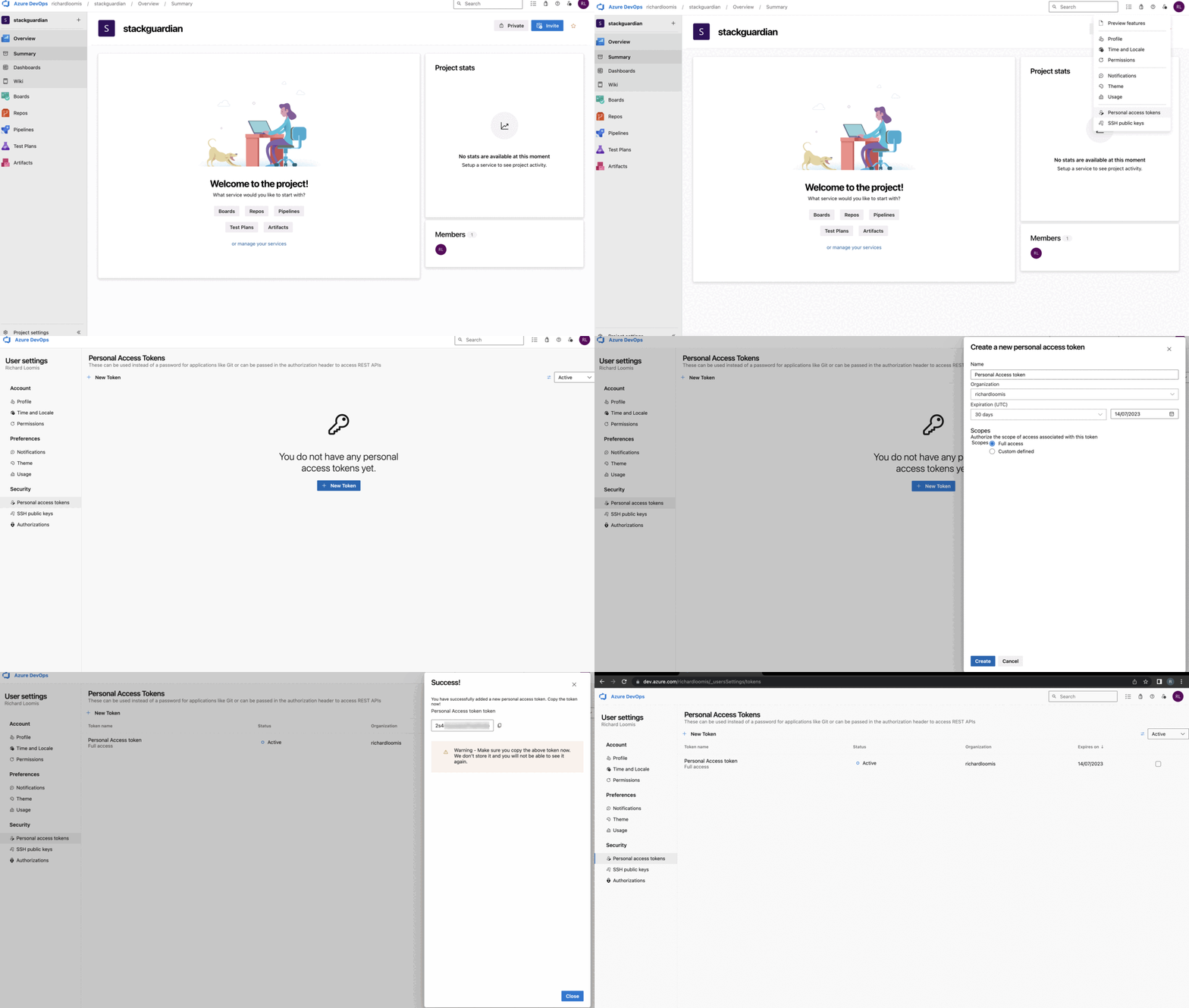
Azure DevOps token creation
Configure Connector in StackGuardian
To complete the connection, visit the StackGuardian platform and follow these steps:
- Go to the Connectors tab in the StackGuardian Orchestrator.
- Click on Version Control Providers > Connect with VCS Provider.
- Click on Connect to Azure DevOps.
- Enter a Connector Name.
- Select Personal Access Token as the Access Type.
- In the Azure DevOps Personal Access Token field, paste the Access Token created earlier.
- Click Create to finalize the configuration of the Connector.
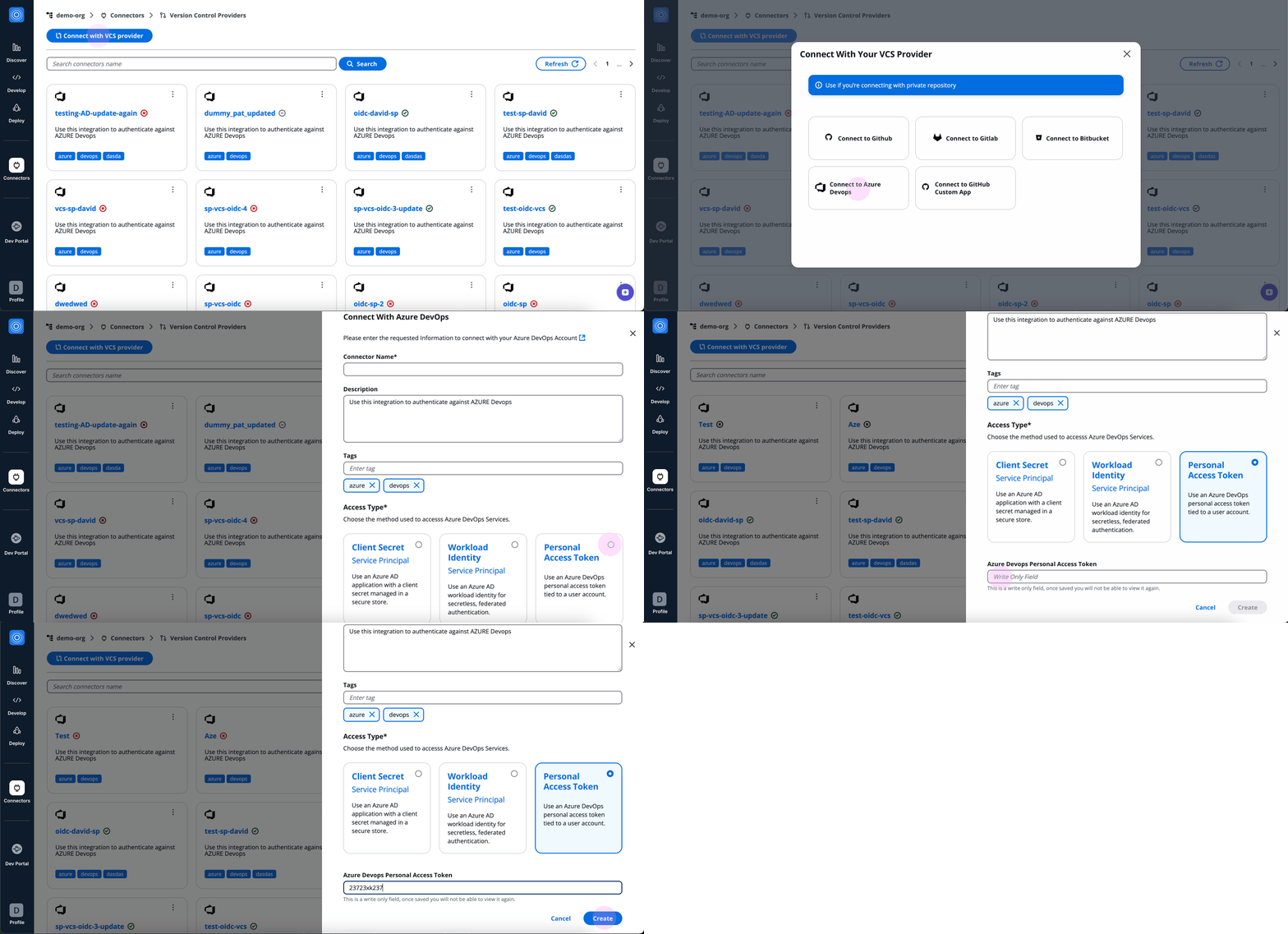
Personal Access Token connector creation