GitHub

Overview

Connect GitHub to StackGuardian to source Infrastructure as Code (IaC) and Policy code from your repositories and trigger Workflow runs automatically on pull requests, pushes, or tag creation. To configure the connector:

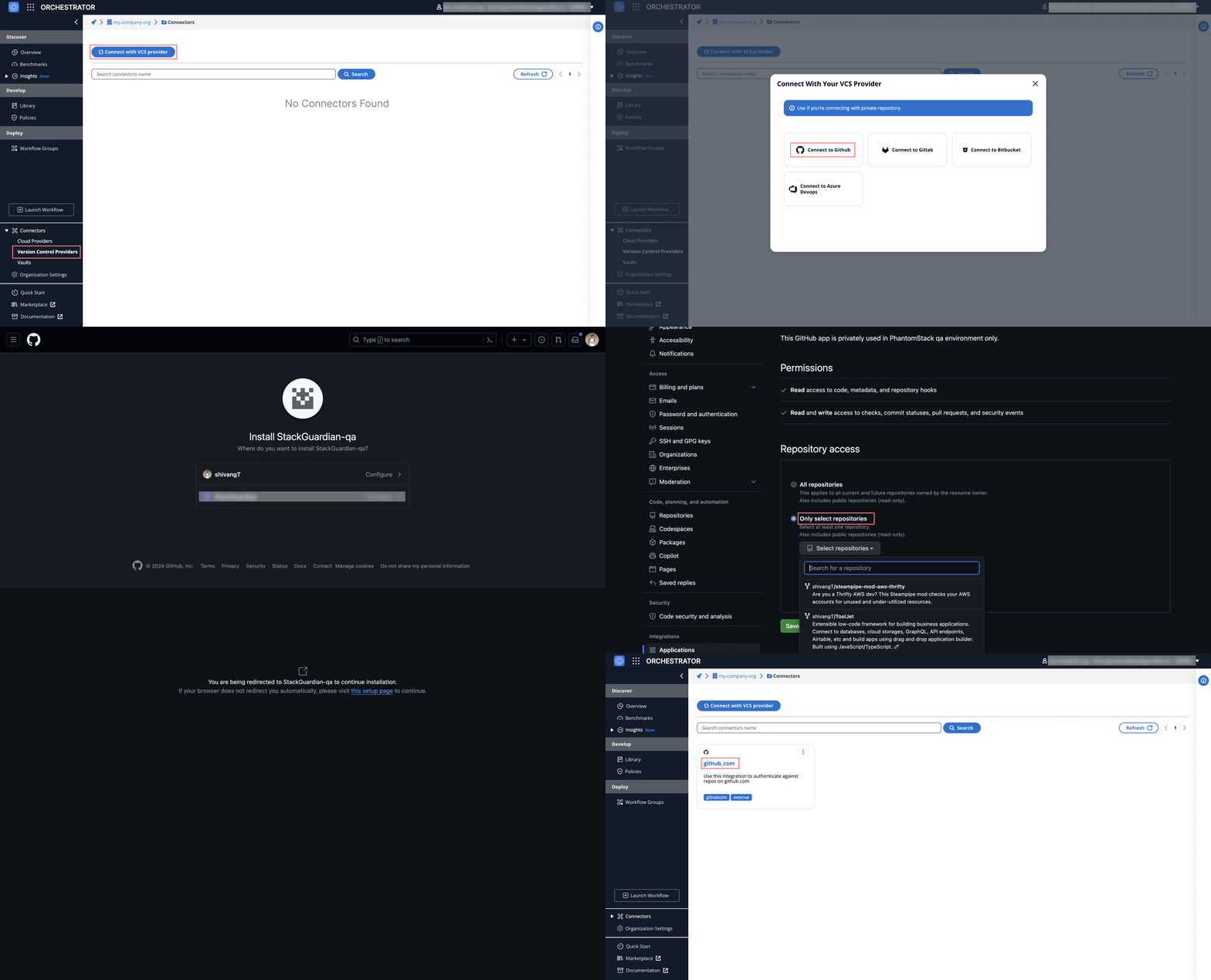
  1. In StackGuardian, navigate to Organization Settings → Connectors → Version control providers.
  2. Select + Connect with VCS provider.
  3. In the Connect with VCP modal, select GitHub as the version control provider.
  4. Choose an authentication method:

GitHub.com App

The GitHub.com App method is the recommended way to connect GitHub to StackGuardian. It uses the official StackGuardian GitHub App and does not require managing credentials manually.

GitHub.com App

GitHub.com App

  1. Enter a Connector name. The connector ID is auto-generated from the name.
  2. Select Connect with GitHub. You are redirected to GitHub.
  3. Sign in to GitHub if prompted.
  1. On the installation screen, select the repositories to grant access to:
    • All repositories — grants access to all current and future repositories in your account, including public repositories (read-only).
    • Only select repositories — grants access to specific repositories you choose.
  2. Select Install. You are redirected back to StackGuardian.

The new connector appears in the Version control providers list with the status Connected.

note

The StackGuardian GitHub App requests the following permissions:

  • Read access to metadata and repository hooks
  • Read and write access to administration, checks, code, commit statuses, pull requests, and security events
  • Read access to email addresses

Custom GitHub App

Use this method to connect a GitHub App you have created and manage yourself.

Before you begin, open the StackGuardian connector form and your GitHub organization settings side by side — you will need to copy values between them.

1. Create a GitHub App in your GitHub organization

  1. In GitHub, go to Settings → Developer settings → GitHub Apps → New GitHub App.
  2. Fill in the following:
    • GitHub App name — a unique name, for example stackguardian-app
    • Homepage URL — for example, https://stackguardian.io
    • Webhook URL — paste the value copied from StackGuardian
    • Webhook secret — paste the value copied from StackGuardian
  3. Select Create GitHub App.

2. Configure permissions and events

  1. Under the app's General settings, select Permissions & events.
  2. Set the following repository permissions:
    • Read access to contents, metadata, and webhooks
    • Read and write access to checks, code scanning alerts, commit statuses, and pull requests
  3. Set the following organization permissions:
    • Read access to webhooks
  4. Under Subscribe to events, enable the following:
    • Check run, Check suite, Code scanning alert, Commit comment, Create, Delete, Installation target, Meta, Pull request, Pull request review, Pull request review comment, Pull request review thread, Push, Repository, Status
  5. Select Save changes.

3. Configure the connector in StackGuardian

  1. Enter a Connector name. The connector ID is auto-generated from the name and can be edited during the connector creation.
  2. Copy the Webhook URL and Webhook secret from the Values for your GitHub App section — you will need these when creating the GitHub App.
  3. Copy the following values from your GitHub App settings into the connector form:
FieldWhere to find it
App IDGitHub App settings → About section
Client IDGitHub App settings → About section
Client secretGitHub App settings → Generate a new client secret
Installation IDGitHub App settings → Install App → install to your organization → copy the digits from the URL
Pem file contentGitHub App settings → Private keys → Generate a private key
  1. Select Create to finalize the connector.
Connect with VCP modal showing the Custom GitHub App form with Webhook URL and Webhook secret fields

Connect with Custom GitHub App

GitHub Enterprise

Use this method to connect a self-hosted GitHub Enterprise instance. The setup follows the same steps as Custom GitHub App, with one additional section in the connector form.

1. Create a GitHub App in your GitHub Enterprise organization

Follow the same instructions as Step 1 and Step 2 in the Custom GitHub App section above, using your GitHub Enterprise organization settings.

2. Configure the connector in StackGuardian

  1. Enter a Connector name. The connector ID is auto-generated from the name.

  2. Copy the Webhook URL and Webhook secret from the Values for your GitHub App section.

  3. Fill in the Credentials fields as described in Step 3 of the Custom GitHub App section, then fill in the Configuration fields:

    • HTTP URL: Your GitHub Enterprise domain, for example https://github.yourcompany.com
    • API URL: Your GitHub Enterprise API endpoint, for example https://api.github.yourcompany.com Do not include a trailing slash in either URL.
  4. Select Create to finalize the connector.

Connect with VCP modal showing the GitHub Enterprise form with Webhook URL, Webhook secret, Credentials, and Configuration fields

Connect with GitHub Enterprise