Wizard
Build workflows either by using subscribed templates or by pulling configurations from a Git repository.
Step 1: Create a Workflow Group
- Navigate to Deployments > Workflow Groups and click Create Workflow Group.
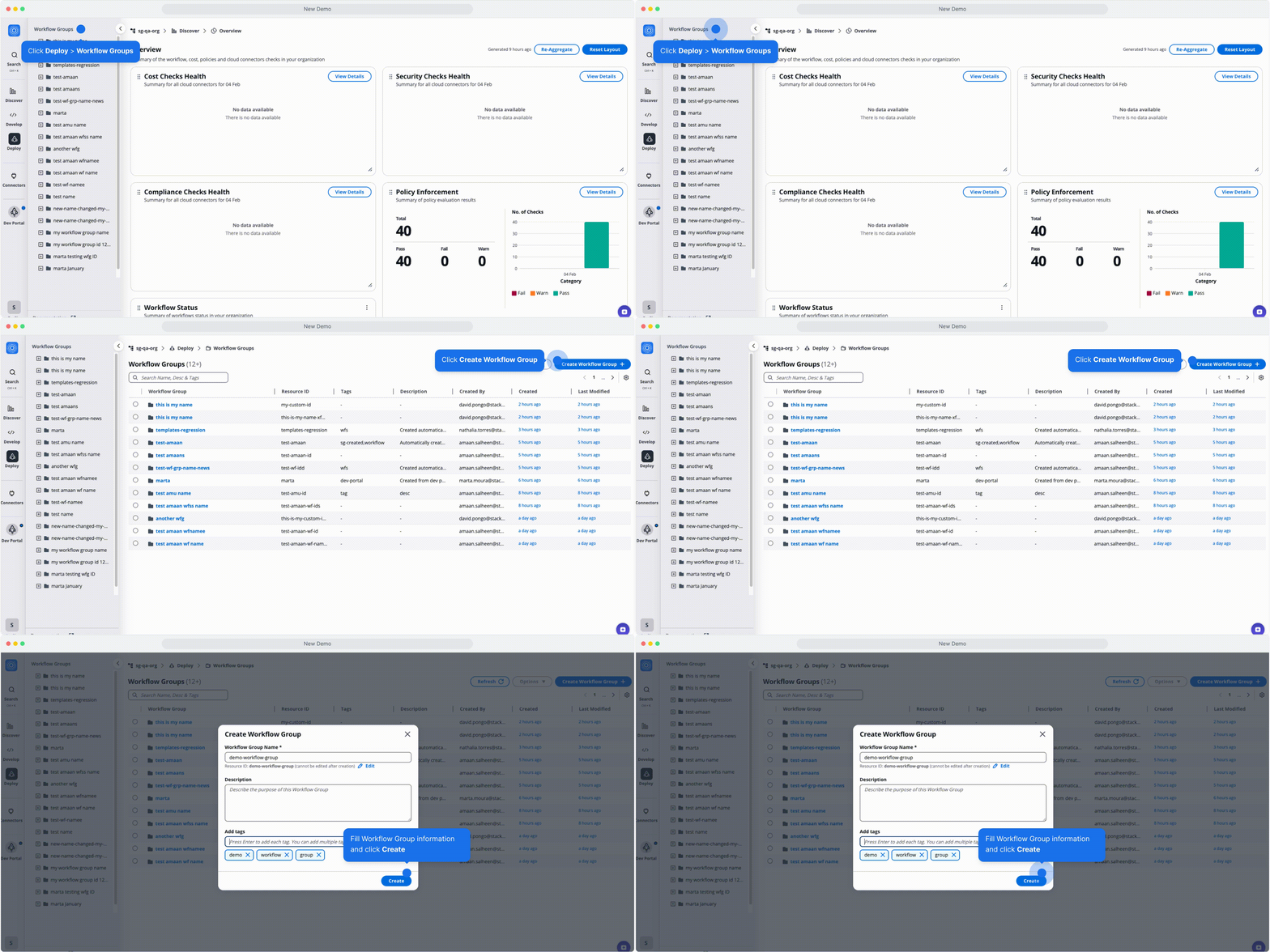
Creating a Workflow Group
Step 2: Initiate a New Workflow
- Open the Workflow Group you just created.
- Click Create Workflow, and select Use Wizard > Terraform.
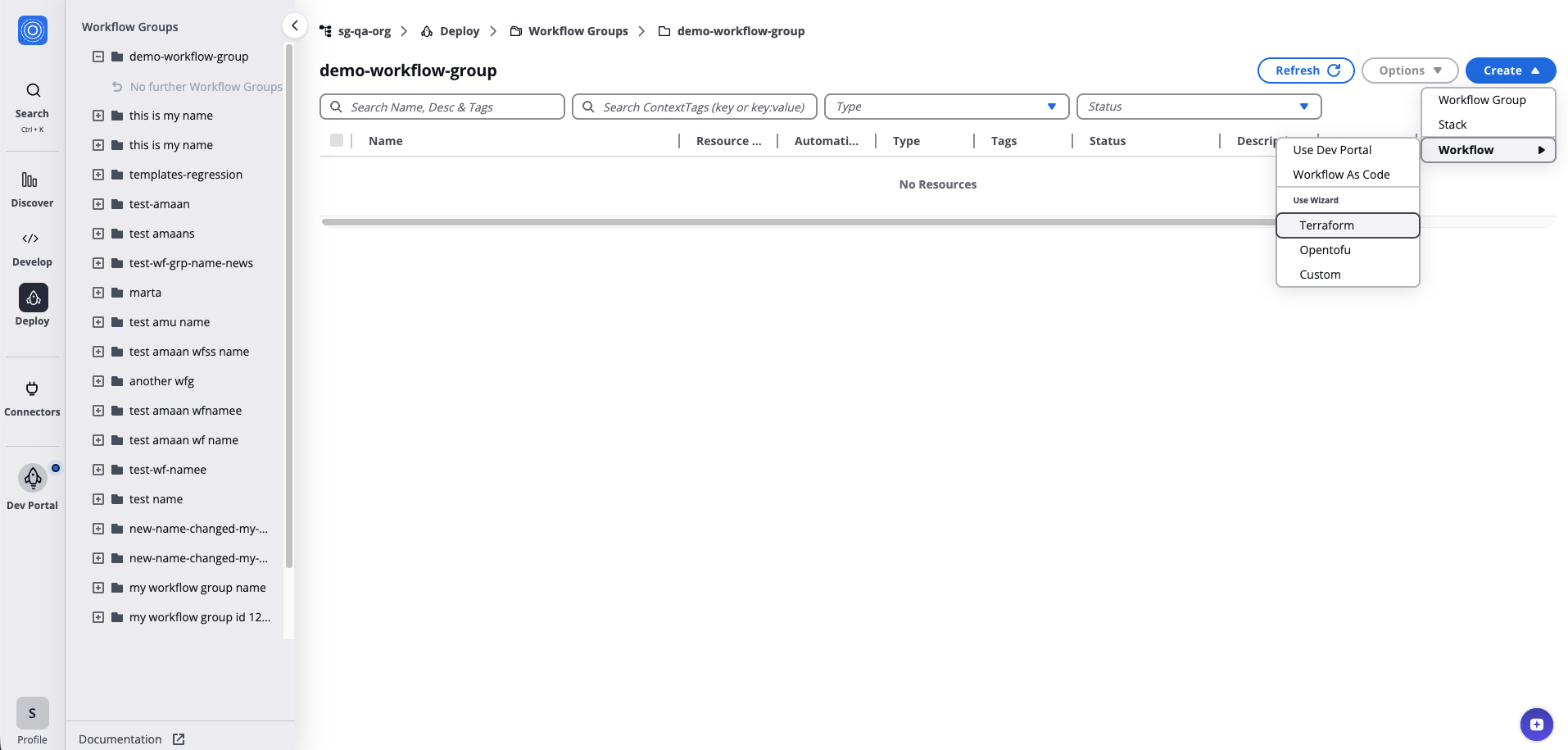
Initiating a New Workflow
Step 3: Choose the Source
Using an Activated Templates
- Search for and select the template.
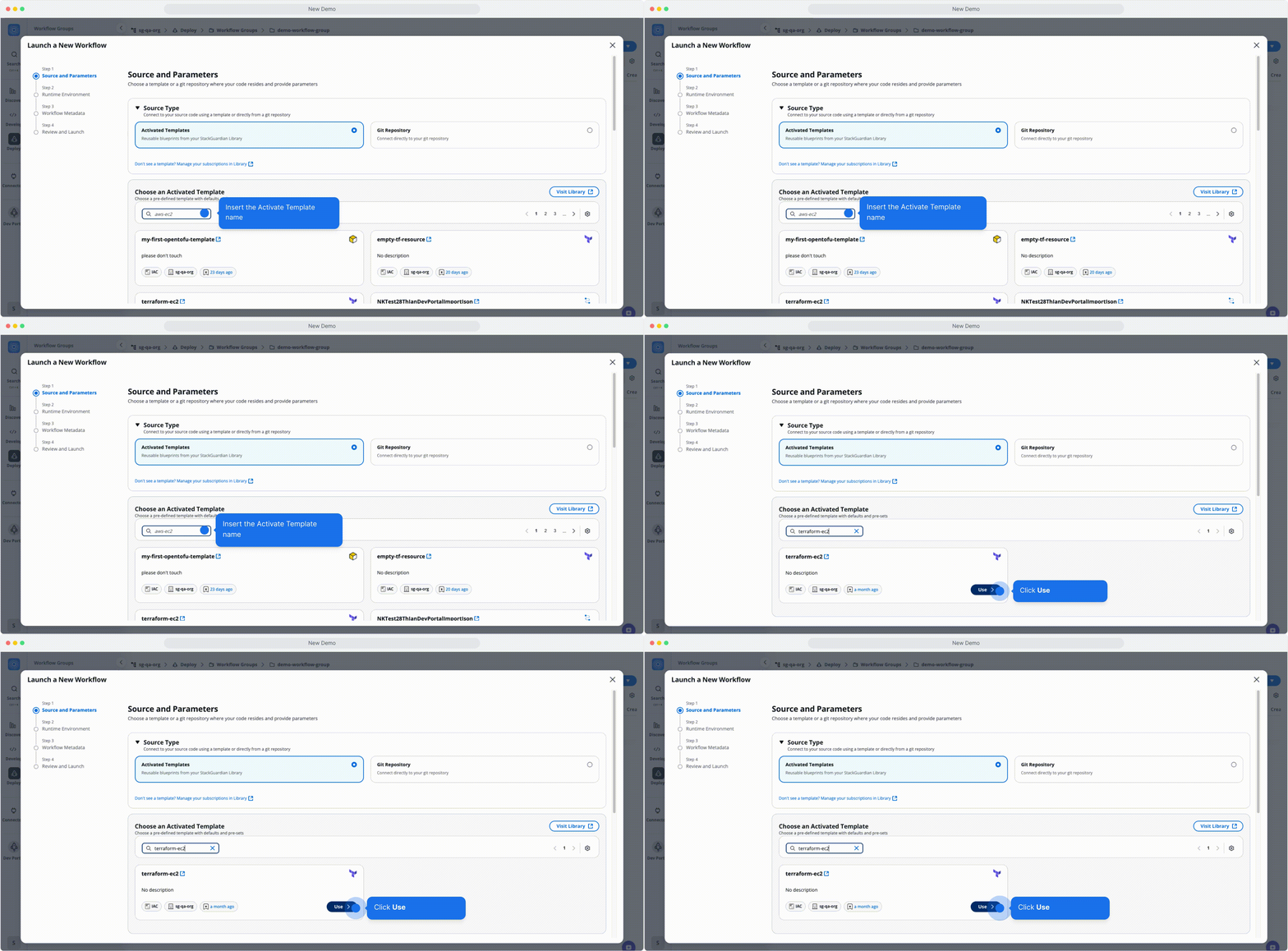
Using an Activated Templates
Template Parameters
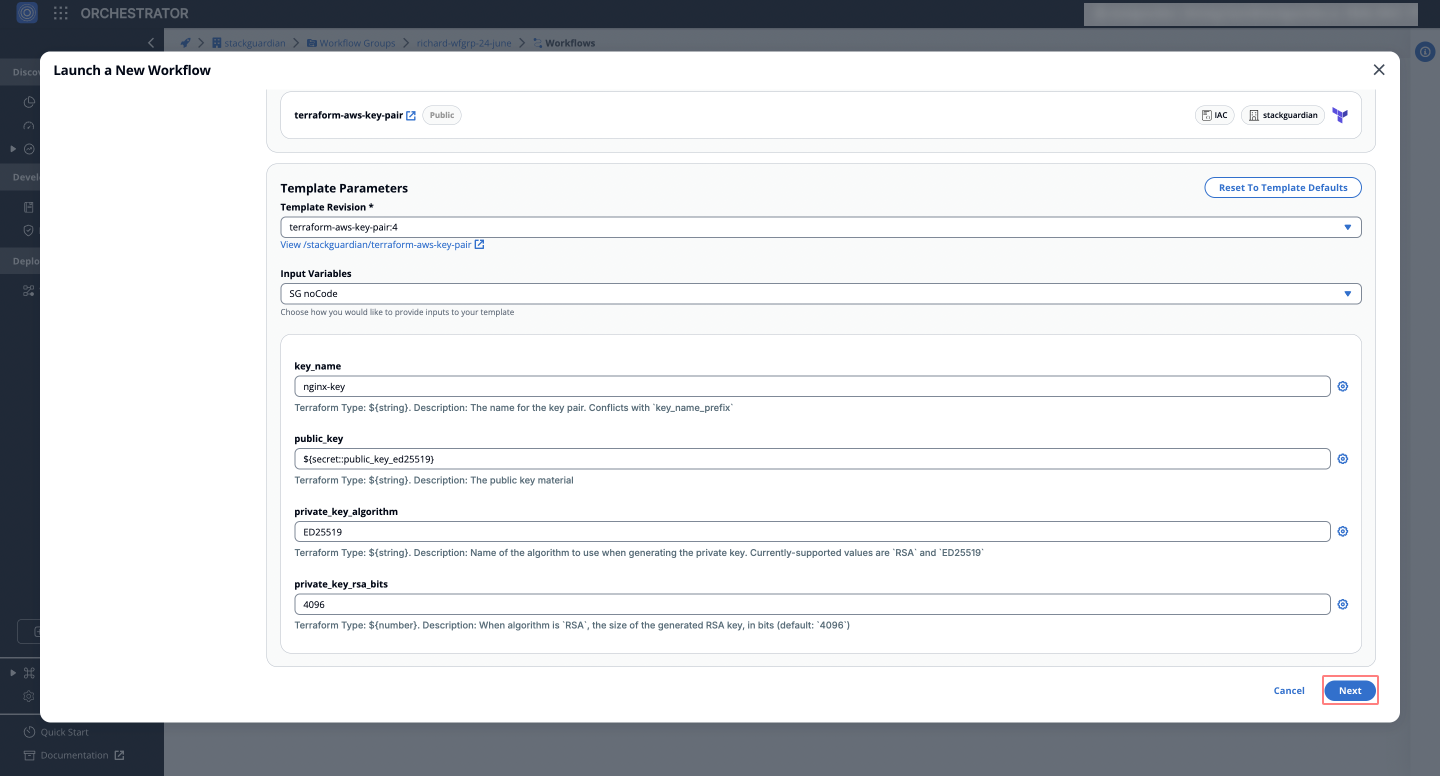
After selecting the template, configure the required parameters:
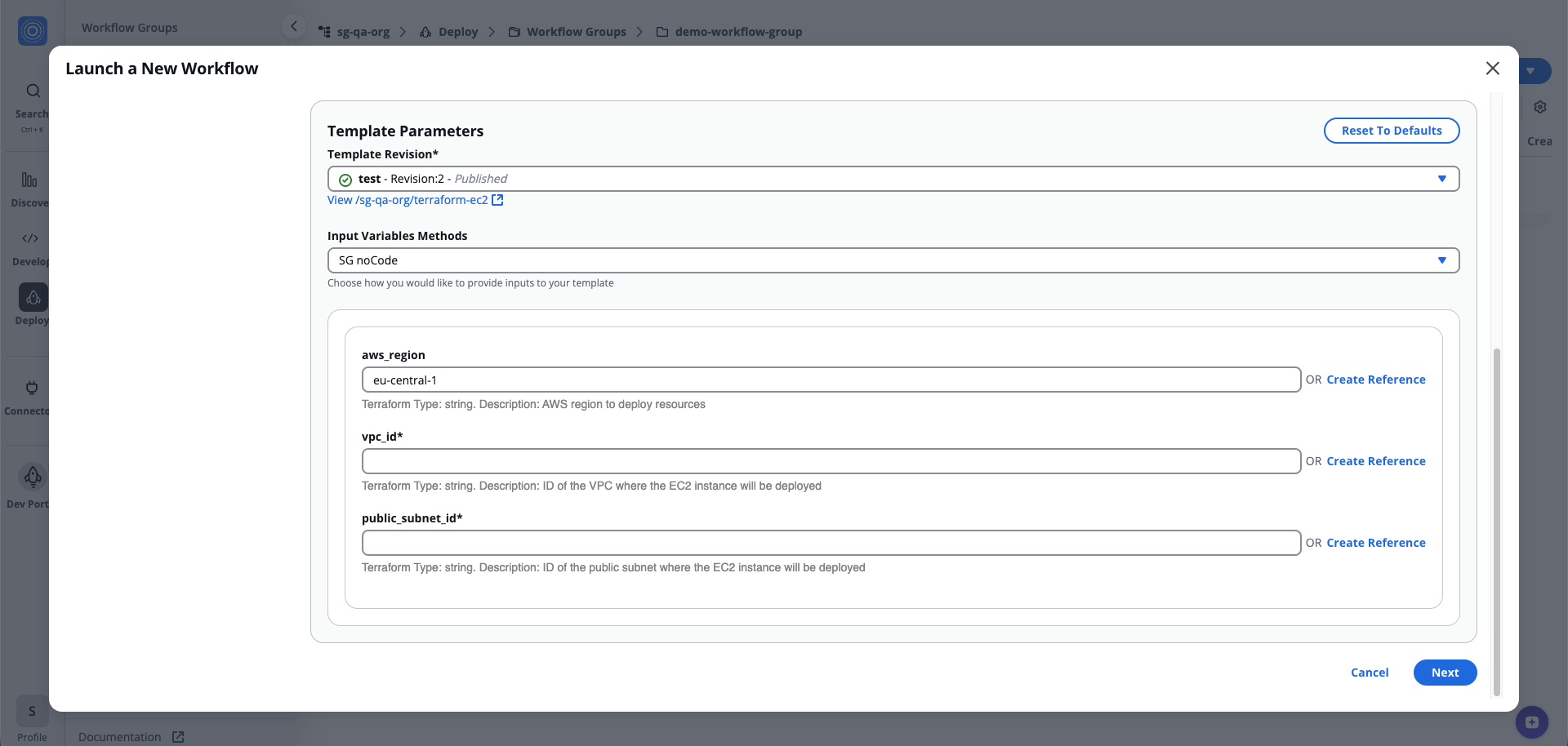
Template Parameters
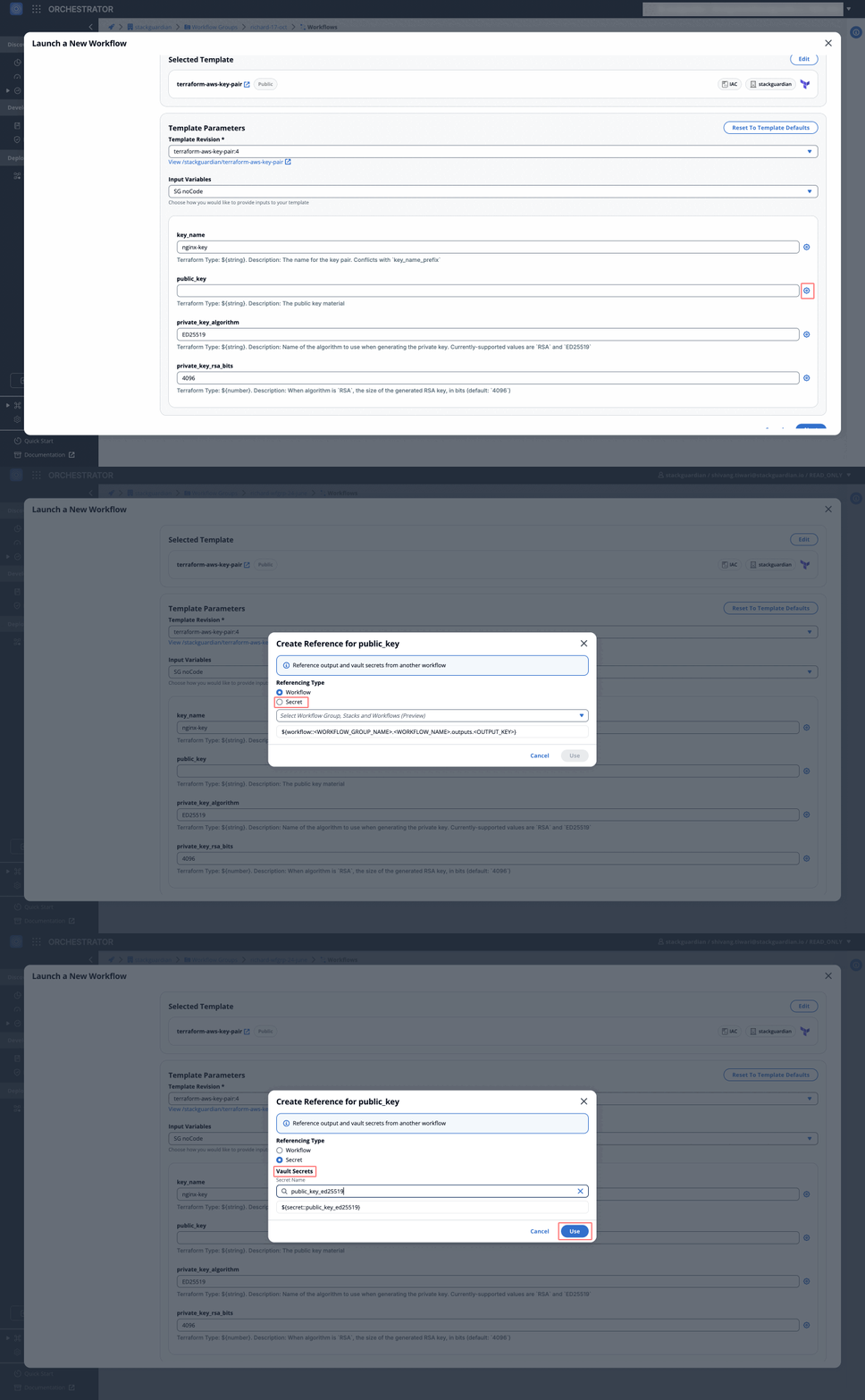
- Key Name: Enter a name for the key pair (e.g.,
nginx-key). - Public Key: Provide the public key needed for the key pair. You can generate this key using tools like ssh-keygen. To configure, click the settings icon, create a reference for the public key using the secret option. "Select" the secret name stored in your Vault and click "Use".
- Private Key Algorithm: Choose an algorithm for generating the private key, such as
RSAorED25519. - Private Key RSA Bits: Specify the size of the RSA key if using the
RSAalgorithm (default:4096). Click Next to proceed.
Using a Git Repository
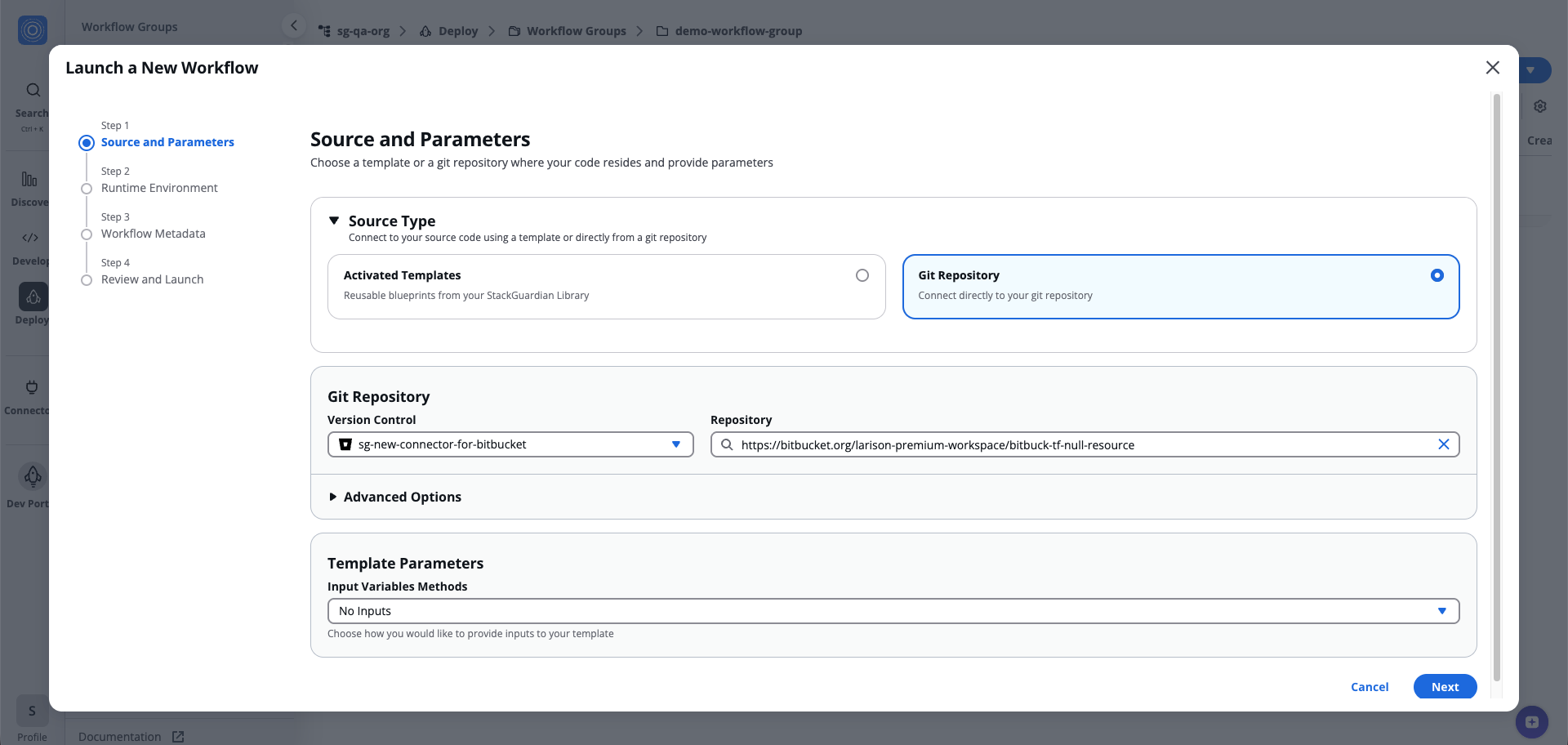
- Select Git Repository as the source type.
- Enter the Git Repository URL, e.g.,
https://github.com/StackGuardian/terraform-aws-vpc. - Configure the following under Advanced Options:
- Working Dir: Specify the directory containing your Terraform configurations (e.g., infra/aws).
- Reference: Input a Git reference like a branch, tag, or commit (e.g., main or v1.0.0).
- Git Sparse Checkout Config: Include/exclude specific paths during checkout.
- Enable git core.autocrlf: Check if consistent line endings are required across operating systems.
- Provide Template Parameters (if needed) and click Next.
Using a Git Repository
Step 4: Configure Runtime Environment
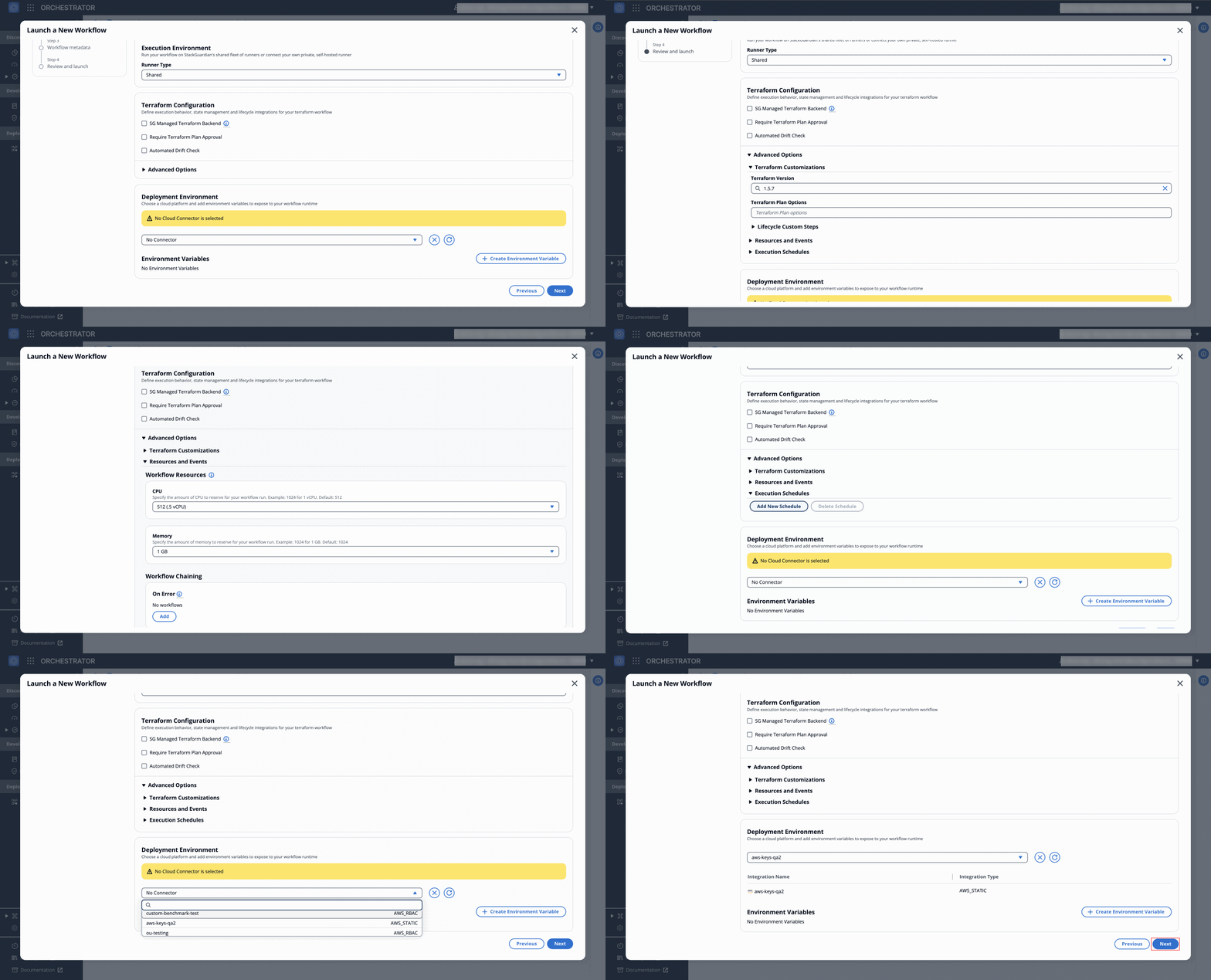
- Select a Deployment Environment and set up the necessary environment variables.
note
Refer to Environment Variables for a complete list.
- Choose the "Runner Type" (e.g., shared or dedicated) for flexibility and visibility.
- Enable additional "Terraform customizations" as per your requirements.
- Use "Advanced Options" for specifying Terraform versions, allocating resources for the workflow and setting schedules for automated runs.
tip
For guidance on generating a Cron expression for your execution schedule, refer to this documentation:
Creating Cron Expressions for Scheduled Events
note
Optionally, customize lifecycle steps using "Lifecycle Custom Steps" for advanced workflows. For more details, see Lifecycle Custom Steps.
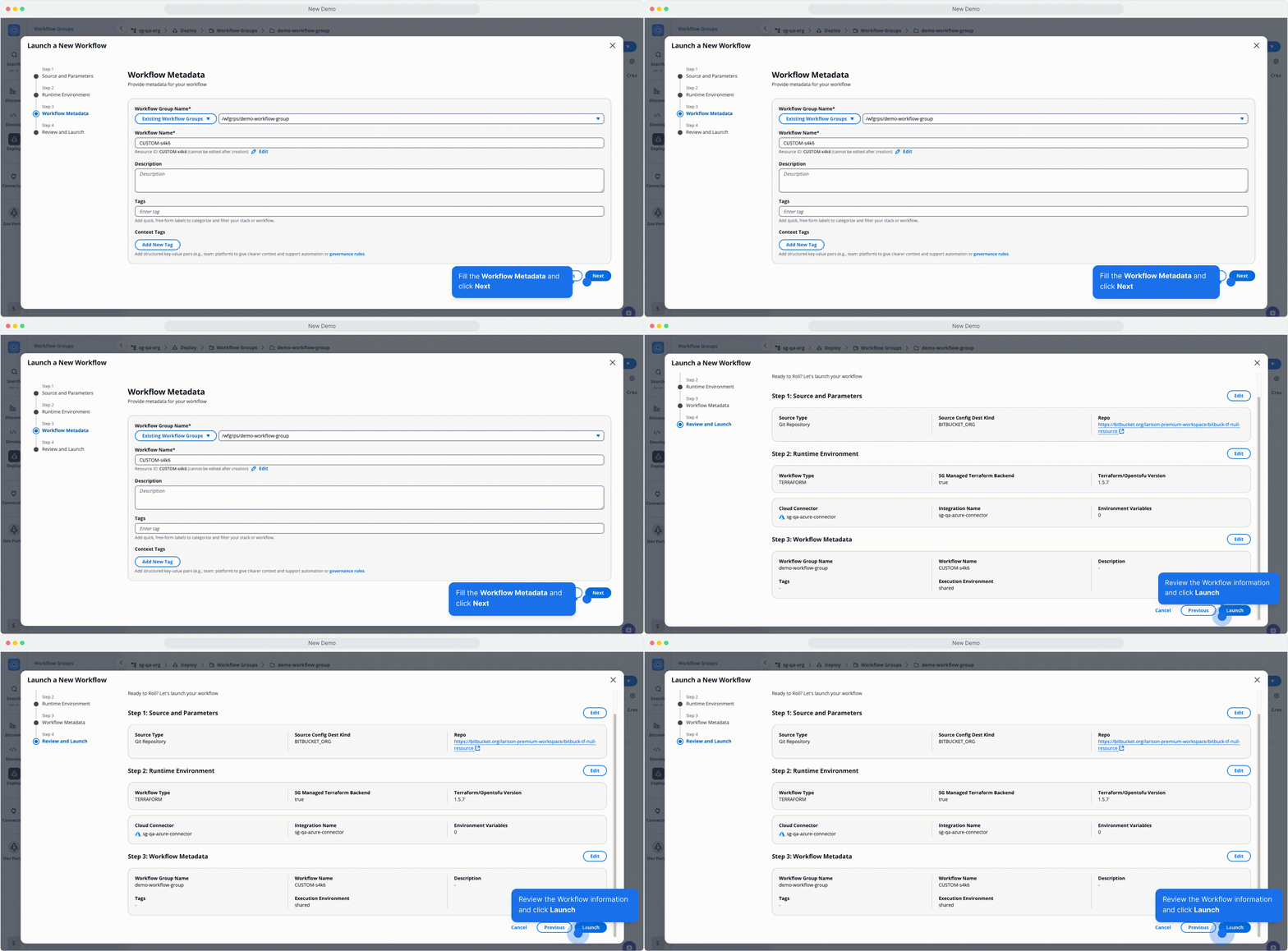
Metadata, Review, and Launch
Update the workflow metadata and click Launch to execute the workflow.
Metadata, Review, and Launch